Page actions
Page navigation. Page actions can be used with the following events:
- OnMouseClick,
- OnMouseRelease,
- OnMouseHold
- OnActivate
- OnDeactivate
- Alarms
- Schedulers.
LoadPage
Go to the selected page of the project.
Starting from JMobile Studio v4.0 in addition to the pages you can use the aliases (see "Alias pages")
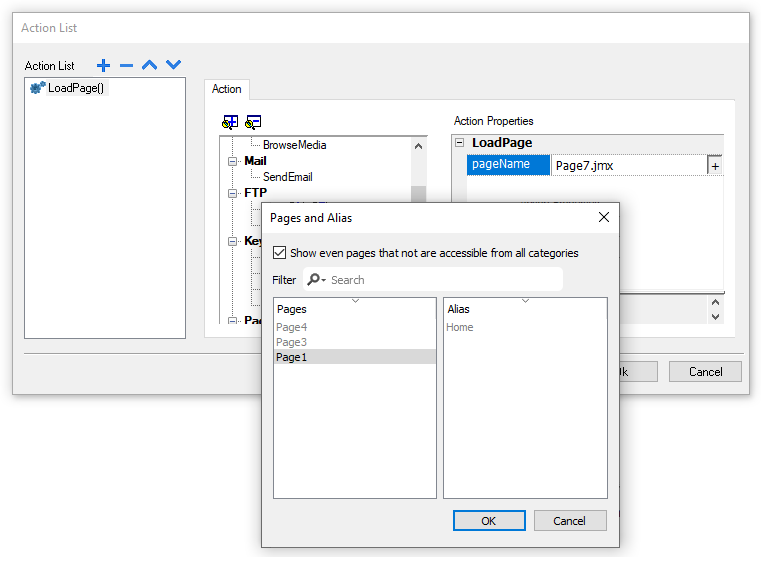
When "Show even pages that not are accessible from all categories" is selected, even the pages not reachable by all categories are listed.
HomePage
Go to the home page.
You can set the home page in the Behavior section of the Project Widget, see "Project"
PrevPage
Go to the previous page.
NextPage
Go to the next page.
LastVisitedPage
Go to the previously displayed page
ShowDialog
Opens a dialog page defined in the project.
CloseDialog
Close dialog pages.
Note: This action is applicable only to dialog pages.
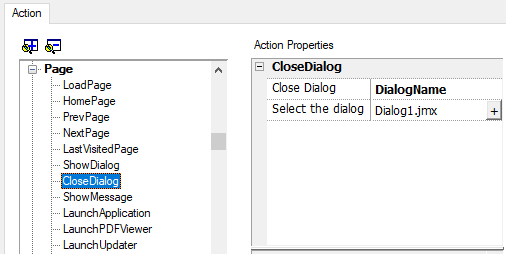
CloseDialog options
| Option | Description |
|---|---|
| All | Closes all open dialogs |
| Selected | Closes only active dialog |
| DialogName | Closes dialog specified as fileName property |
JavaScript Interface
project.closeDialog(DialogID);
Where DialogID:
| All | Closes all open dialogs |
| Selected | Closes only active dialog |
| DialogName.jmx or AliasName | Closes dialog specified as fileName parameter |
Examples
| Example | Behavior |
|---|---|
| project.closeDialog("All"); | All open dialogs are closed |
| project.closeDialog("Selected"); | The selected dialog is closed |
| project.closeDialog("Dialog1.jmx"); | All instances of Dialog1 are closed |
The function project.closeDialog(); without parameter works as project.closeDialog("Selected");.
ShowMessage
Displays a popup message. Enter the text of the message to be displayed.
LaunchApplication
Launches an external application.
| Parameter | Description |
|---|---|
| App Name |
Executable name with extension (for example, "notepad.exe" to run Notepad) |
|
Path |
Application path. |
|
Arguments |
Application specific arguments (for example, \flash\qthmi\Manual.pdf to open the document “Manual.pdf”) |
| Single Instance |
Argument to start the application in a single instance or multiple instances. When single instance is selected, the system first verifies whether the application is already running; if so, then the application is brought to the foreground, if not, then the application is launched. |
| FlushRuntimeCache | Flush all runtimes cache to free as more ram as possible before running the application. |
Note: Arguments with spaces must be quoted (for example, "\Storage Card\Manual.pdf")
Example:

LaunchPDFViewer
Starts PDF Viewer.
Note that the pathname of the arguments field uses native OS format (see "HMI devices capabilities").
On Linux devices, the HMI application is installed on path /mnt/data/hmi/qthmi/deploy/ and pathname's syntax use the slash character.
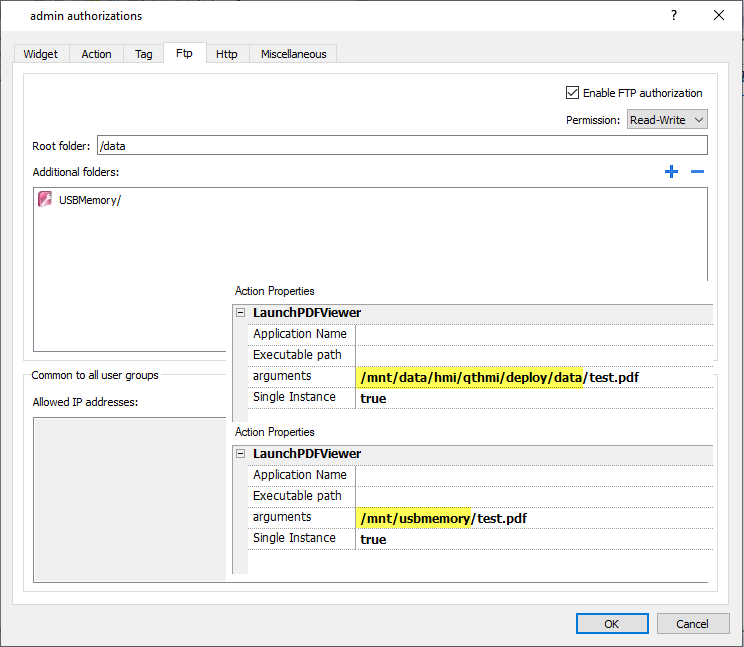
-hide-open-button (available only on Linux devices)
Using this option, the icon to open a different file will be removed from the PDF toolbar (to restrict navigation to PDF file already opened and passed via command line).

LaunchUpdater
Updates project and runtime from an external device.
Use Path parameter to specify the folder that will contain the update package file. Leave the path parameter empty if you prefer select the file manually on the HMI device when the macro is invoked.
When the LaunchUpdater macro is executed, the below dialog is showed on HMI device
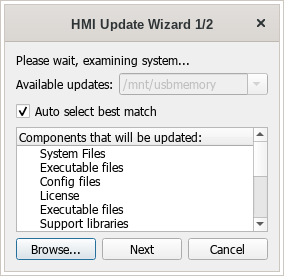
Note: Not supported in devices based on Windows platform.
JavaScript Interface
project.launchUpdater(strPath)
Examples
project.launchUpdater("\\USBMemory")
LockScreen
Temporarily locks the touch screen. Allows cleaning the touch screen.
The system variable Time remaining to unlock displays the time remaining to unlock.See "Screen variables"
LoadProject
Unload current project and load the selected project inside the HMI device.
The project name has to be specified using relative path, as for the below example:

LastVisitedProject
Unload current project and return to previous project